

Start with a project
A new personal workspace may contain no projects. The optional Get started view offers workspace naming, first test project creation, teammate invitation, and test API key creation. You can skip any step or the entire view and return later from the workspace overview. Owner and Admin can create projects. Only the test environment is available.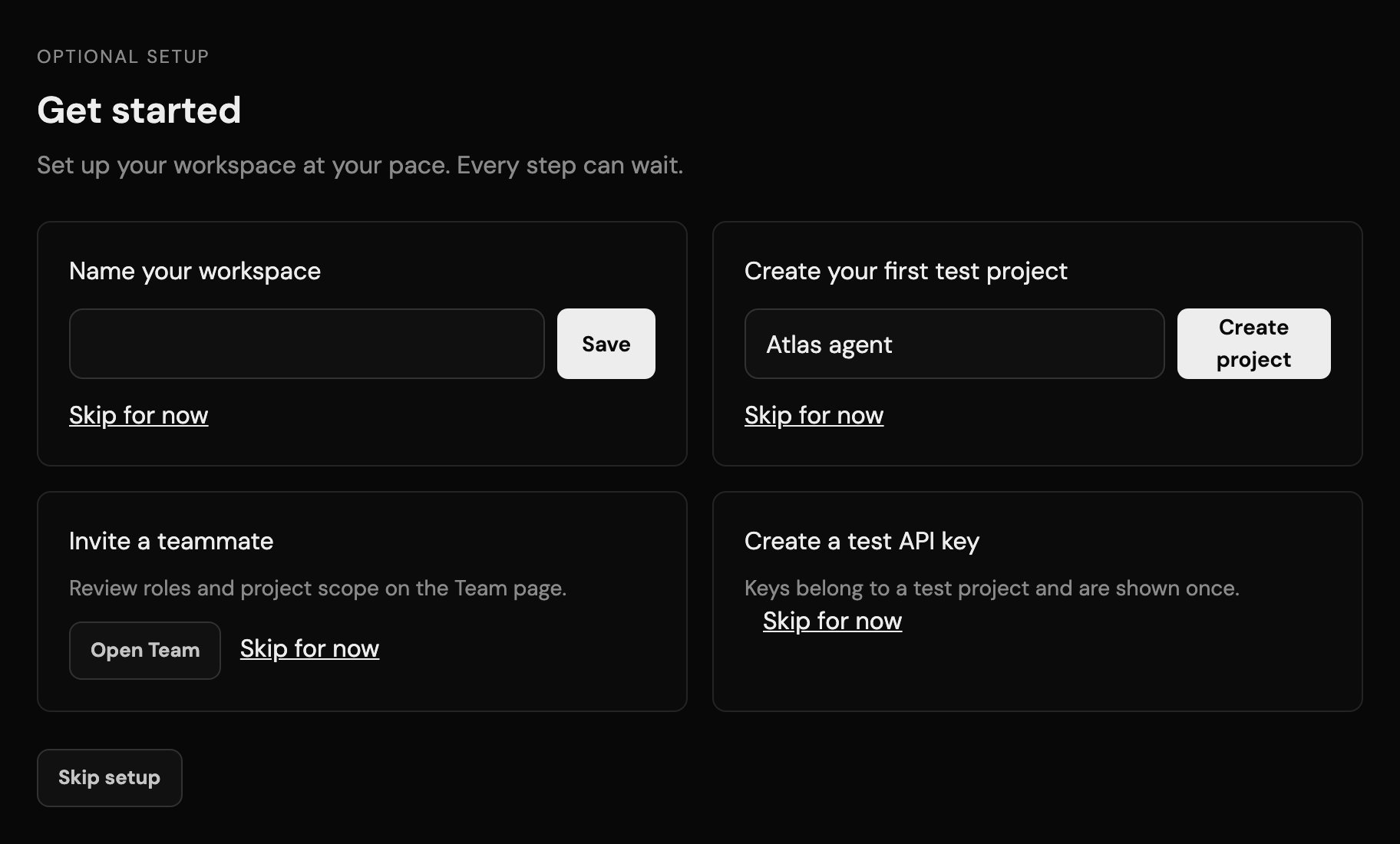
Optional setup in the console, captured with mock data from the deployed console source.
Roles and project scope
Owners and Admins cover current and future projects. An Operator or Viewer can cover all current and future projects, or only selected project IDs. The invitation dialog previews effective access before you send it. A member with selected projects sees only those projects. The API checks membership and grants on each request; a hidden navigation item is not the security boundary.
Workspace Owner is a developer-console role. It does not make someone the owner of a wallet, grant a mandate, or authorize a transaction. A project API key remains bound to one project and environment and cannot manage workspace membership. Account-owner signatures still govern mandate authority.
Invite and review
- Open Team in the chosen workspace and select Invite teammate.
- Enter the recipient’s email, select a role, and choose project scope if the role permits it. Review the effective-access summary, then send.
- The recipient opens the invitation, passes the console access gate, and signs in with the invited email. They can accept, decline, or decide later. A pending invitation expires after seven days.
- Review its delivery and acceptance state on Team. You can revoke it, or resend a new link that replaces the old one. A failed delivery can be retried.
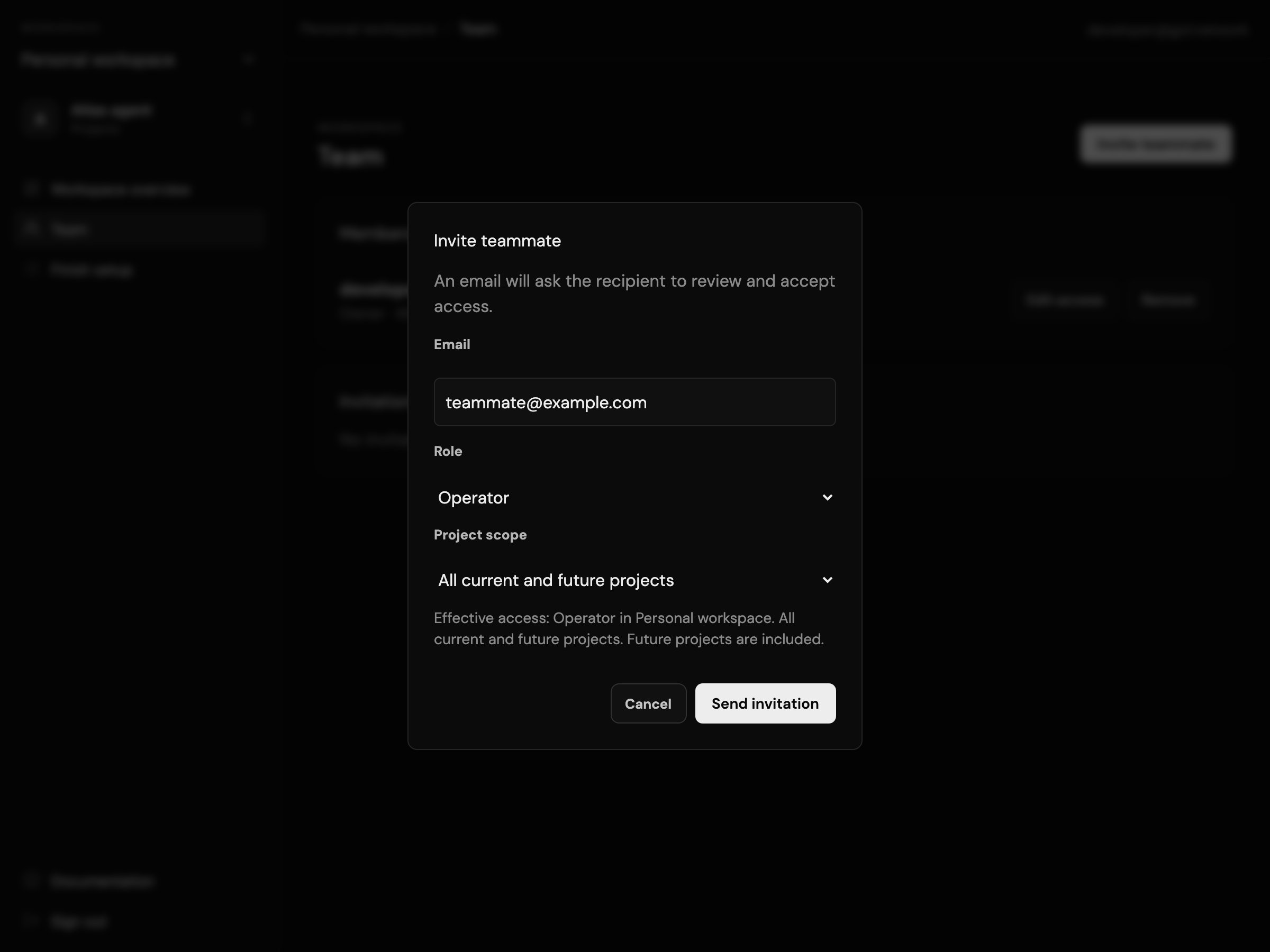
The invitation dialog previews role and project scope before sending. The address is mock data.
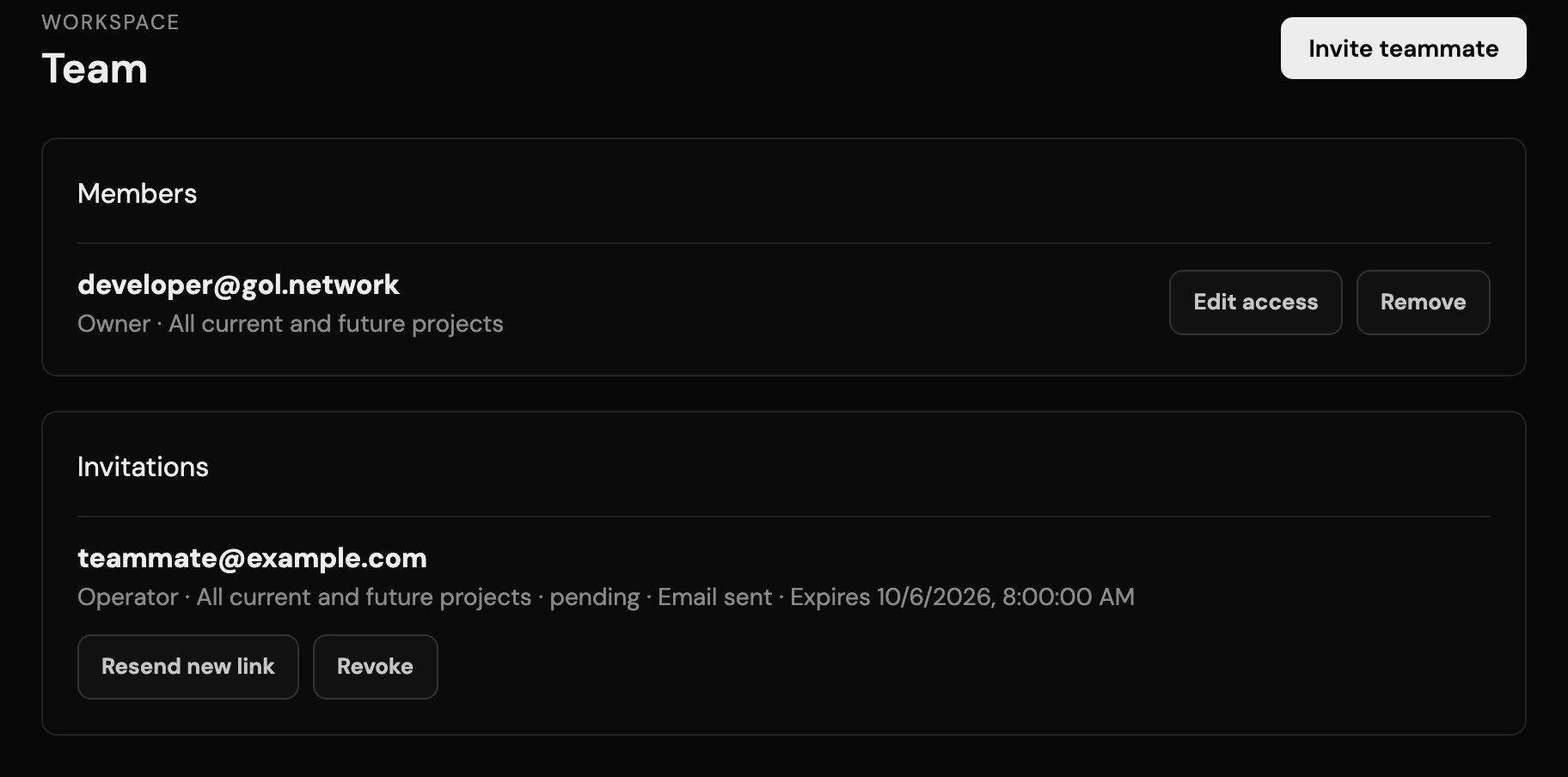
Team lists members and invitations with their effective scope and state. The addresses are mock data.
Remove a teammate
Open the member on Team and review offboarding before removal. Removal ends that person’s workspace and project access. It does not revoke API keys they created, because keys belong to the project. Review those keys separately and rotate or revoke them where needed. Project data, IDs, mandate records, and audit history remain with the workspace.Use the public API or SDK
Workspace routes require a developer session, not a project API key. The published@gol/sdk@0.6.1 exposes them through GolManagementClient: list workspaces and accessible projects, read members and invitations, create a workspace project, review an invitation before accepting or declining, and review offboarding before removal. Keep the session token server-side. See the SDK API clients and generated reference for method signatures, or the API reference for routes and schemas.
The legacy project-creation route still targets your personal workspace. For another workspace, use its explicit workspace project route. Project API keys keep their existing scopes and do not grant team management.